


WooCommerce Google Ads Profit Dashboard Per Product Guide
Wootrack Growth Blog
WooCommerce Google Ads Profit Dashboard Per Product Guide
Why Your Google Ads Reports Are Lying About Product Profitability
Here is the thing. Google Ads shows you revenue. It shows you ROAS. It tells you which products are driving conversions and which campaigns are performing. But it does not know what your products actually cost you to sell. And that gap – between revenue and real profit – is where thousands of euros in ad spend quietly disappear.
Take a real example. You have a WooCommerce store selling consumer electronics. Your top SKU – a wireless charging pad – generates €40,000 in monthly revenue from Google Shopping. ROAS sits at 480%. Your account manager is thrilled. You scale the budget.
But strip back the numbers. The product costs €18 to source. Shipping is €4.50. Stripe takes 1.9% plus €0.25 per transaction. You are selling into Germany, so VAT eats another slice. By the time you account for all of that, your actual margin per unit is €7.20. On a €40 sale. That is 18%. Now calculate what you are actually earning per euro of ad spend – and you will find your 480% ROAS is delivering a POAS somewhere around 86%. You are losing money on every click that converts.
This is not a rare edge case. It happens constantly in WooCommerce stores running Google Shopping or Performance Max without a per-product profit dashboard. And the stores that catch it earliest – before they scale – are the ones that survive.
The Problem With Optimizing on Revenue
Google’s Smart Bidding is genuinely powerful. But it optimizes for whatever signal you feed it. Feed it revenue, it chases revenue. Feed it profit, it chases profit. Right now, almost every WooCommerce store running Shopping or PMax is feeding Google revenue – because that is what WooCommerce sends by default.
The result is predictable. Google’s AI finds the products and audiences that generate the most revenue per click, not the most profit. It scales your highest-revenue SKUs. Some of those will be your most profitable products. Others will be margin killers with great price points and terrible unit economics. Google cannot tell the difference. You need to tell it – and to do that, you need a profit dashboard that breaks down performance per product first.
How to Build a Per-Product Profit Dashboard for Google Ads
- 1
Map Every Cost Layer Per SKU
Start with your product catalog. For each SKU, you need four numbers: COGS (cost of goods sold), average shipping cost, payment processing fees (Stripe, PayPal, Klarna – these vary by method), and VAT if you sell into EU markets. Most WooCommerce stores have COGS in their system but have never aggregated the other three. Pull 90 days of order data and calculate the average total cost per unit sold. This becomes your cost baseline.
- 2
Calculate True Profit Per Order
For each order, the formula is: Profit = Revenue – COGS – Shipping – Payment Fees – VAT. Do this at the order level, not the product level average, because order size, shipping zones, and payment methods all vary. Once you have per-order profit, you can roll it up to per-product profit across any time window. This is the number that actually matters.
- 3
Match Profit Data to Ad Spend Per Product
Now pull your Google Ads spend broken down by product ID from your Shopping or PMax campaigns. Match it against your per-product profit totals. The output is POAS per product: (Total Profit from Product / Ad Spend on Product) x 100. A POAS above 100% means you are profitable. Below 100% means you are paying Google to sell products at a loss. This view will almost certainly surprise you.
- 4
Segment Products Into Performance Tiers
Once you have POAS per product, segment your catalog. Winners are products with POAS consistently above your target threshold – typically 130% or higher. Borderline products sit between 90% and 130% POAS and need margin work or bid adjustments. Losers are below 90% – these are actively destroying profit and should be excluded from campaigns or have bids cut aggressively. This segmentation is the foundation of every scaling decision you make.
- 5
Feed Profit Data Back Into Google Ads
A static dashboard is useful. A dynamic one that actually changes how Google bids is transformative. The mechanism is offline conversions – you send profit values back to Google Ads as conversion events, replacing revenue signals with profit signals. Google’s Smart Bidding then optimizes for POAS instead of ROAS. This is the step that closes the loop and makes your campaigns self-correcting.
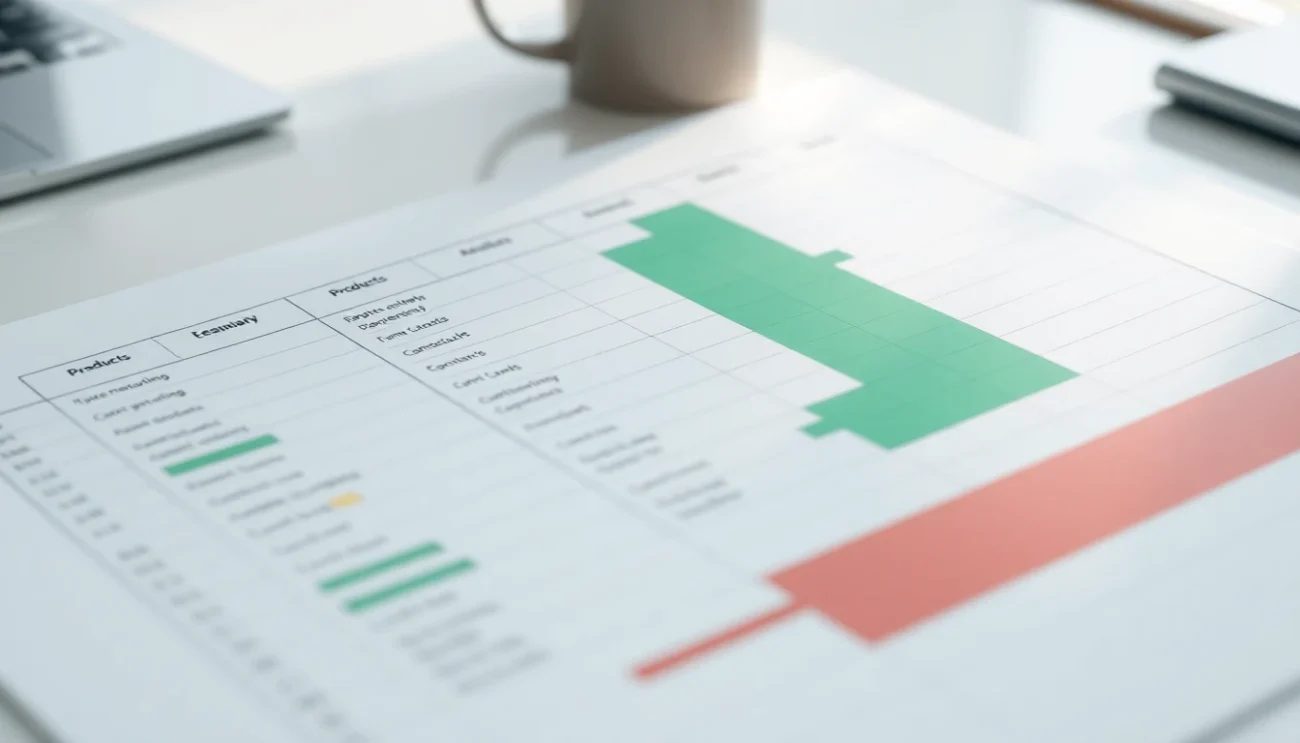
What a Real WooCommerce POAS Dashboard Looks Like in Practice
A proper profit dashboard for Google Ads profit reporting in WooCommerce does not look like a standard analytics screen. It is not sessions, bounce rates, or conversion rates. It is a product-level table with five columns that matter: product name, total ad spend, total profit generated, POAS percentage, and a performance label.
That label is the key. WootrackApp calls them A, C, and X – Winners, Borderline, and Losers. Every product in your catalog gets one of those labels based on its POAS against your target threshold. Those labels sync directly to your Google Shopping and Performance Max campaigns as custom labels, which means Google’s bidding engine treats your winners differently from your losers – automatically, without you manually adjusting bids every week.
The per-product profit dashboard inside WootrackApp pulls COGS from your WooCommerce product data, calculates shipping and payment fees per order, handles VAT for EU stores, and updates in real time. You are not looking at last month’s export. You are looking at what happened yesterday, broken down by SKU.
POAS Thresholds: What Numbers Should You Target?
This depends on your business model, but here are realistic benchmarks. A POAS of 100% means you are breaking even on ad spend – every euro you spend on ads returns exactly one euro of profit. That is not a business, that is a treadmill.
Most healthy WooCommerce stores running Google Shopping should target a minimum POAS of 120% to 130% for their overall account. Individual product targets can vary – high-volume, low-margin products might be acceptable at 110% if they drive repeat purchases, while premium SKUs with 50%+ margins should be hitting 160% POAS or higher before you scale budget. The dashboard gives you the visibility to set those thresholds per product, not just account-wide.
The stores that scale profitably are not the ones spending more. They are the ones who know exactly which products deserve more spend before they press the button.
– Ecommerce Growth Strategist / Google Ads Specialist
Common Mistakes When Building a Google Ads Profit Tracking Setup
Most WooCommerce store owners who try to build profit tracking manually make the same set of errors. Not because they are careless – but because the data is spread across four or five different systems and the connections between them are not obvious.
The biggest mistake is using average COGS instead of per-order COGS. If you sell bundles, run promotions, or have variable cost products, your average margin is a fiction. You need actual cost data per order, not a catalog-level average applied uniformly. A 20% discount code on a product with a 22% margin just made that sale unprofitable – your dashboard needs to reflect that.
The second mistake is ignoring payment method mix. Stripe, PayPal, and Klarna have different fee structures. If 40% of your orders go through Klarna’s buy-now-pay-later at 3.29% plus fixed fees, and you are calculating fees using Stripe’s 1.9% rate, you are overstating profit on nearly half your orders. Small percentages compound fast at volume.
And the third mistake – the one that costs the most – is building the dashboard but not connecting it back to Google Ads. Knowing your losers is only useful if that knowledge changes your bidding. The whole point of per-product profit data is to make Google’s AI optimize differently. That requires sending profit values as offline conversions, which is exactly what WootrackApp automates.
Pre-Scaling Checklist: What Your Profit Dashboard Must Show
- COGS entered per product in WooCommerce – not estimated, not averaged across categories
- Shipping cost calculated per order based on actual carrier rates and zones
- Payment fees tracked by method – Stripe, PayPal, Klarna, and any others you accept
- VAT correctly excluded from revenue figures if you are EU-based (you are not earning VAT)
- Ad spend matched to product-level data from Google Shopping or PMax product groups
- POAS calculated per SKU across a minimum 30-day window before making scaling decisions
- Products labeled by performance tier (Winner / Borderline / Loser) with clear POAS thresholds defined
- Profit values being sent to Google Ads as offline conversions – not revenue values
- Budget scaling rules tied to POAS thresholds, not ROAS or revenue targets
Frequently asked questions
Can I build a per-product profit dashboard without a plugin?
Technically yes – you can export WooCommerce order data, pull Google Ads spend by product ID, and build a spreadsheet. But it breaks every time costs change, it does not update in real time, and it does not feed profit data back into Google Ads. For a one-time audit it works. For ongoing optimization it does not scale.
How does WootrackApp send profit data to Google Ads?
WootrackApp calculates true profit per order inside WooCommerce – subtracting COGS, shipping, payment fees, and VAT from revenue – then sends that profit value to Google Ads as an offline conversion event. Google’s Smart Bidding uses that value instead of revenue, so it optimizes for POAS rather than ROAS.
What POAS threshold should I use before scaling a product?
A minimum of 120% to 130% POAS is a reasonable floor for most WooCommerce stores. That means for every euro spent on ads, you are generating at least €1.20 to €1.30 in actual profit. High-margin products should clear 150% before you aggressively scale. Products below 100% POAS are losing you money on every click that converts.
Does per-product profit tracking work with Performance Max campaigns?
Yes. WootrackApp’s A/C/X product labeling syncs to your product feed as custom labels, which PMax campaigns use to differentiate bidding between product tiers. Winners get more budget, losers get suppressed. The offline conversion mechanism works with PMax the same way it works with standard Shopping campaigns.
What if my COGS change frequently – does the dashboard stay accurate?
WootrackApp pulls cost data directly from WooCommerce, so if you update your product costs in WooCommerce, the profit calculations update automatically. You are not maintaining a separate spreadsheet. The connection is live, which is the only way per-product profit tracking stays reliable over time.
How long does it take to see POAS data per product after setup?
You will see historical profit data immediately after connecting WootrackApp to your WooCommerce store and entering your cost data. For Google Ads optimization to shift, Smart Bidding needs roughly 30 to 50 conversion events with profit values to recalibrate. Most stores see meaningful changes in campaign behavior within three to four weeks.